
Nowadays, exchanging contact information through traditional paper business cards is gradually being replaced by Digital Business Cards (VCard). Not only does it help protect the environment, but Webie VCard also brings professionalism, convenience, and unlimited information storage capacity. However, not everyone knows how to quickly save these digital business cards to their phones.
In this article, Webie Vietnam will provide detailed instructions on how to save a professional VCard on both of today’s most popular operating systems: iOS and Android.
What is a VCard?
A VCard (Virtual Contact File) is a standard file format for electronic business cards. A VCard is considered a digital address book containing full personal information such as: Full name, phone number, email, address, website, social networks, and profile picture.
Instead of having to type each phone number or username, you only need one scan or access a VCard online link, and all information will appear. Webie VCard is the perfect solution for businesses and individuals who desire a Digital Business Card with a beautiful interface and powerful synchronization features.
Benefits of saving VCards to your smartphone
Using and storing VCards directly on your phone offers outstanding advantages:
- Time-saving: It only takes 3-5 seconds to save a new contact instead of manual entry.
- High Accuracy: Completely eliminates errors when copying phone numbers or misspelling names.
- Professionalism: Impress partners with a modern, professional Digital Business Card.
- Easy Management: Contacts are clearly categorized in the smartphone directory, making them easy to find when needed.
- Real-time Updates: You can update information on your card at any time through the Webie VCard system without re-printing new cards.
How to save a VCard on iOS (iPhone)
Apple’s iOS operating system supports the VCard (.vcf) format very well. Storing them on an iPhone is seamless through the Safari browser or the Camera app.
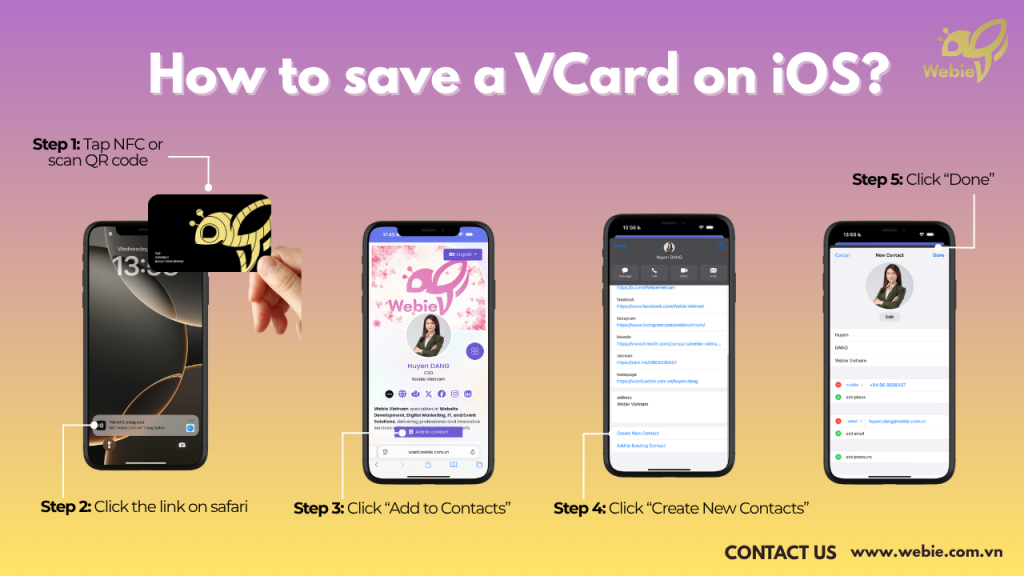
Detailed Steps to Save a VCard on iPhone (iOS)
To save digital business card on an iPhone, follow these steps:
Step 1: Tap NFC or scan the QR code to open the VCard link.
Step 2: Safari will display the contact information or .vcf file; click the link.
Step 3: On the business card interface, click “Add to Contacts” (Add me/Save contact).
Step 4: Click “Create New Contact”.
Step 5: Click “Done” to confirm. Check the saved information in the Contacts app.
Notes for saving VCards on iOS
- iOS does not automatically save contacts; users must perform the operation manually.
- You should use Safari for the most stable file-saving experience. Some third-party browsers like Chrome on iOS occasionally encounter errors when recognizing .vcf files.
- An internet connection is required when downloading the VCard file from the server.
How to save a VCard on Android
Unlike iOS, Android has interface variations between brands (such as Samsung’s OneUI, Xiaomi’s MIUI). However, the core process for saving Smart Digital Business Cards remains very simple.
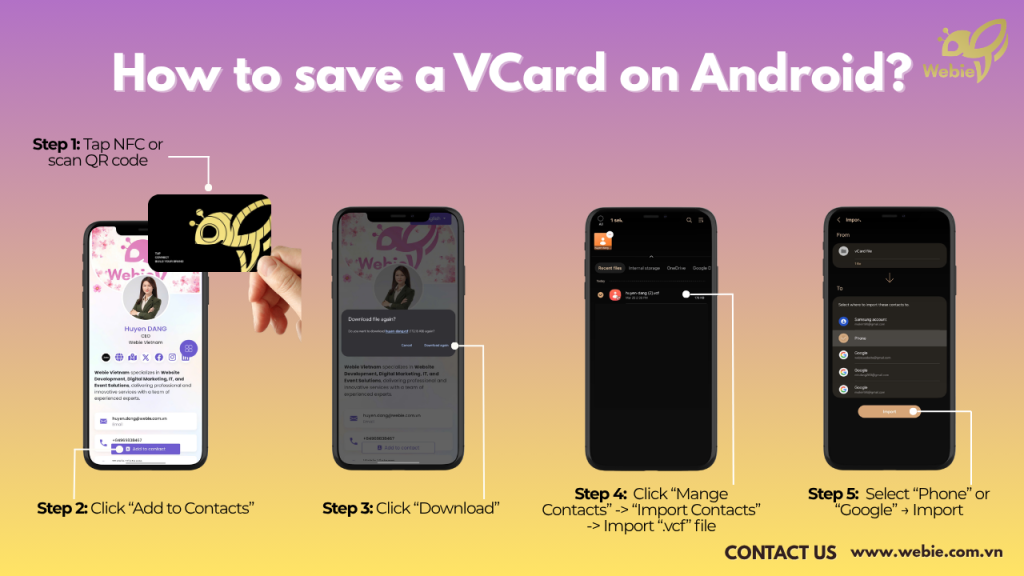
Detailed Steps to Save a VCard on Android
The following instructions are commonly applied to Android phones:
- Step 1: Tap NFC or scan the name card QR code using Google Lens or the built-in QR scanner to access the VCard online of the person you want to save. For NFC, if the Android phone reads the NFC chip, it will typically open Chrome.
- Step 2: Click “Add to Contact”
- Step 3: Click “Download” the .vcf file.
- Step 4: Open the Contacts app on Android, click “Manage Contacts -> Import Contacts -> Import “.vcf” file
- Step 5: Select the storage location, such as the device or your Google account -> Import is done
Notes for saving VCard on Android
- File Management: Sometimes the downloaded file does not open automatically; you need to go to the “File Manager” app to activate it manually.
- Scanner Apps: If you have an older phone without a built-in QR scanner, download “QR & Barcode Scanner” from the Play Store.
- Brand Variation: Depending on the phone brand (Samsung, Oppo, Xiaomi…), the Import interface may differ slightly.
Common errors and how to fix them
Even with modern Online Services, saving a VCard can sometimes face minor obstacles. Here are common errors and solutions:
Cannot open .vcf file:
- Due to format errors or corrupted downloads.
- Fix: Re-check the download link or use a default Contacts app to read the VCF.
Font errors (Vietnamese characters)
- Occurs when old VCard (2.1) files do not support UTF-8.
- Fix: Products from Webie Vietnam always use the latest encoding standards; you should use professional VCards from reputable providers to avoid this.
NFC not working:
- NFC is turned off or the device does not support it.
- Fix: Enable NFC in Settings (Android) or use a name card QR code instead.
QR Code not scannable:
- The code is too small, blurry, or in poor lighting.
- Fix: Increase screen brightness or move the camera closer.
Owning a Webie VCard not only confirms your personal status but is also a powerful tool for business networking. Mastering how to save digital business cards on both iPhone and Android ensures you and your partners stay professionally connected.
If you are looking for a Smart Digital Business Cards solution, do not hesitate to contact Webie Vietnam to experience premium Online Services today!
Hotline: 0969 838 467 – Huyen DANG
Email: huyen.dang@webie.com.vn
Website: webie.com.vn